

All Walsh Portal users must activate their Okta account before logging in for the first time. Follow this guide to complete registration, set a secure password, and enable multi-factor authentication.
Setup at a Glance
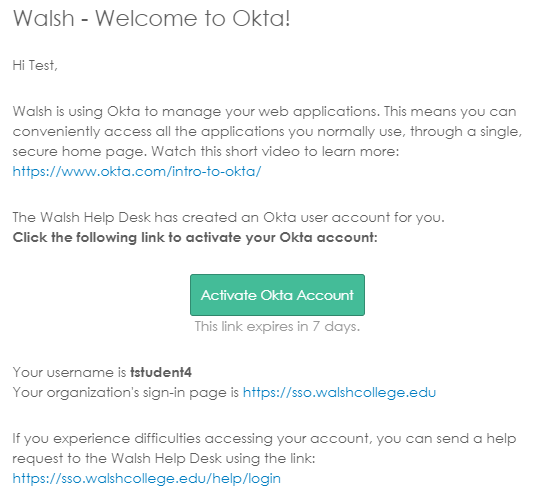
Having trouble? Contact support@walshcollege.ae or helpdesk@walshcollege.edu for a new activation link
Go to Student Portal →All Walsh Portal users must activate their Okta account before logging in. Here is what you need to have ready before starting.
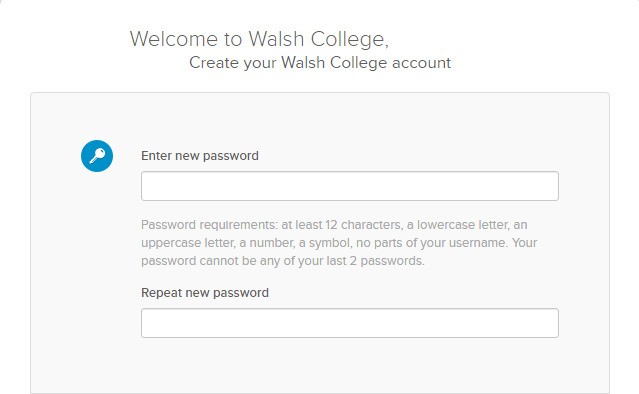
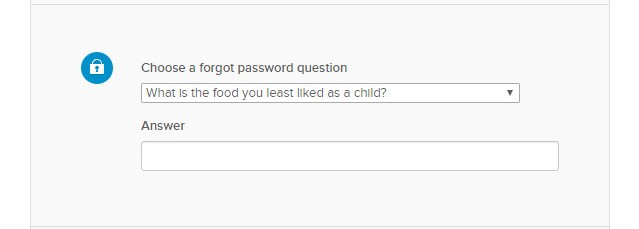
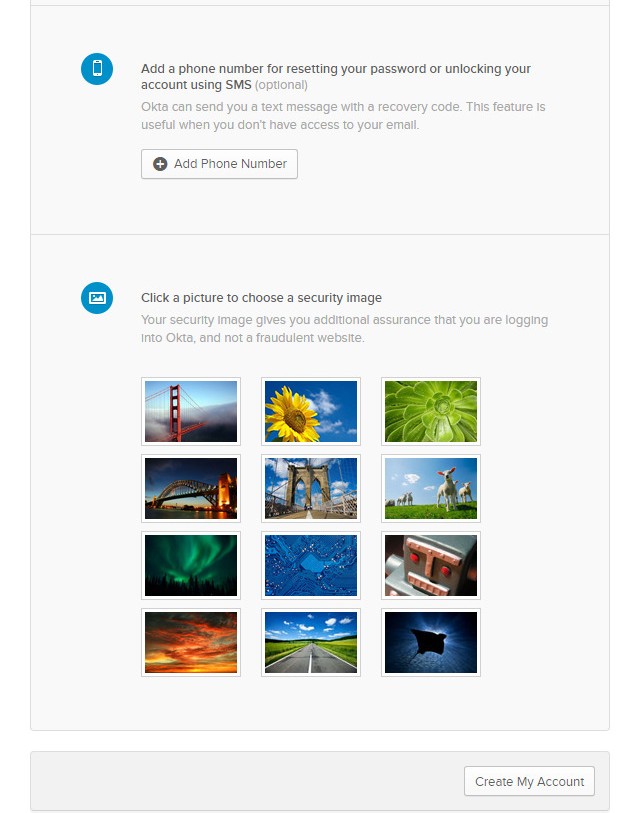
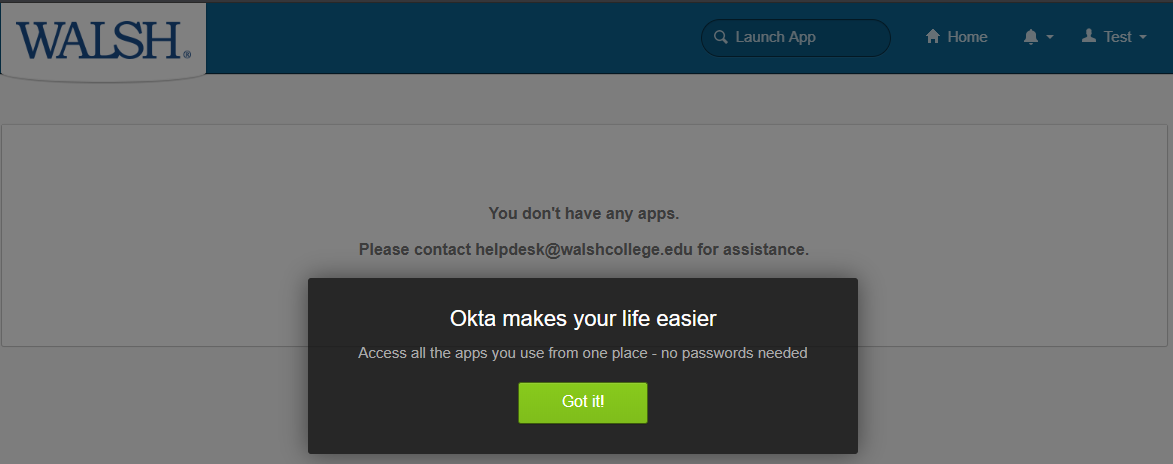
Follow these six steps to activate your Walsh College Okta account. Have your activation email and mobile phone ready before you start.
MFA is a mandatory extra layer of security for all Walsh staff, faculty, and students. Choose at least one of the three methods below — we strongly recommend setting up two.
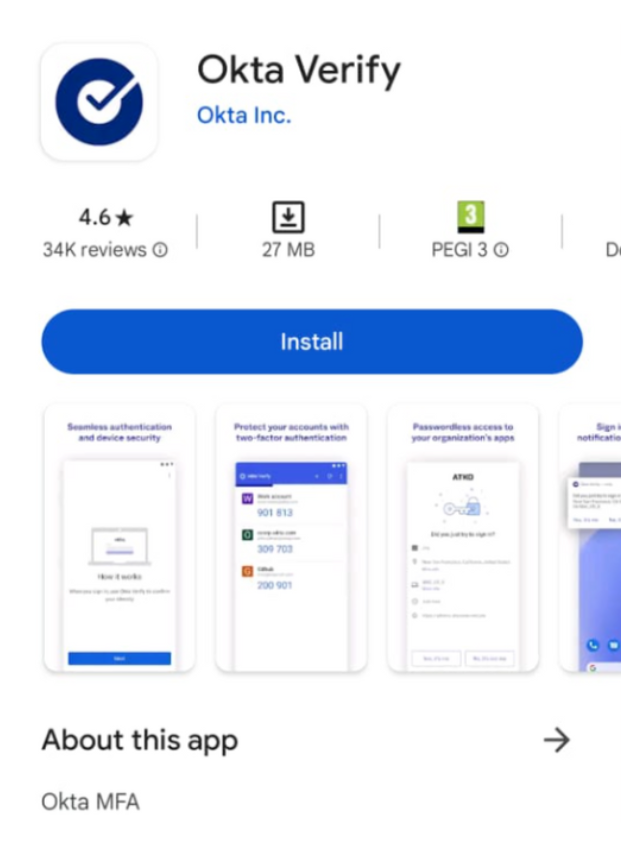
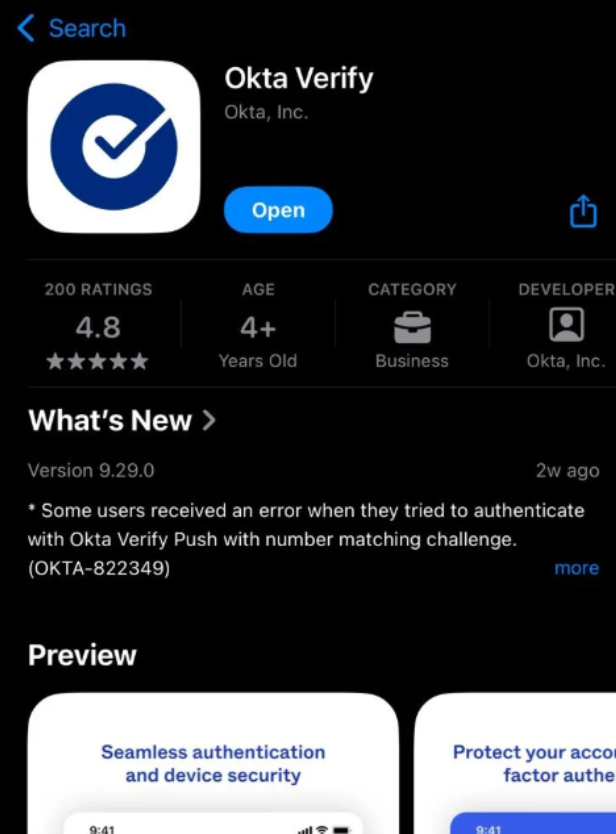
Push notifications and time-based one-time passcodes via the Okta Verify app. The most seamless MFA method — approve sign-ins with a single tap on your phone.
Generates a six-digit time-based code every 30 seconds. Works entirely offline and is a strong backup when Okta Verify is unavailable. Lock-out after 5 failed attempts requires admin reset.
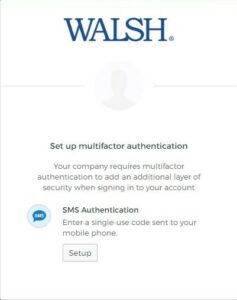
Receive a one-time verification code via text message. Requires mobile signal — best used as a backup method alongside Okta Verify or Google Authenticator, not as your only MFA method.
Click any section below for step-by-step setup, QR code scanning, manual configuration, and troubleshooting instructions.
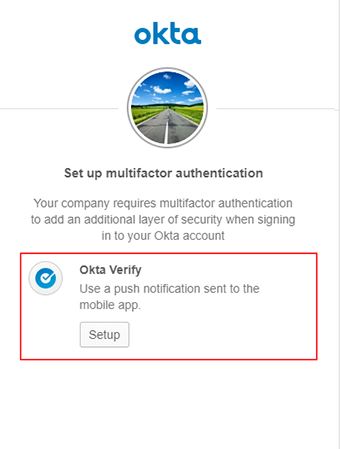
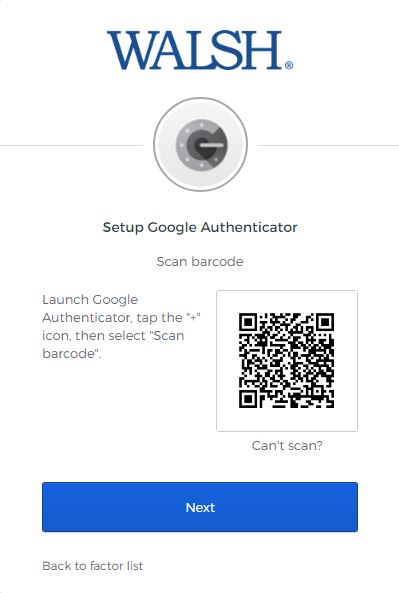
When you attempt to log in to your Walsh account for the first time after registration, you will be prompted to enrol your device with Okta Verify. During enrollment, the app uses your device camera to scan a QR code displayed in your browser.
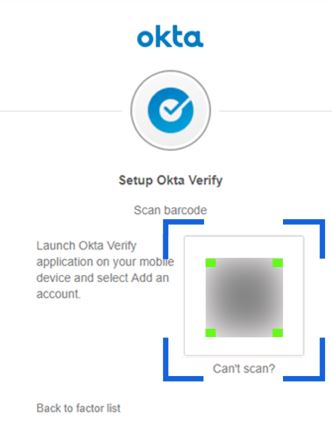
Use the manual setup method if your camera cannot scan the QR code displayed in the browser.
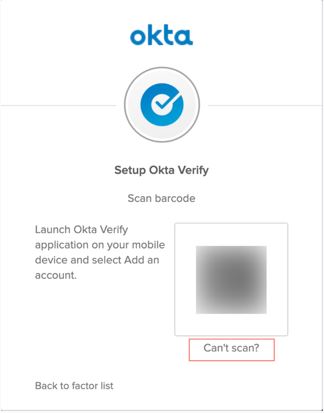
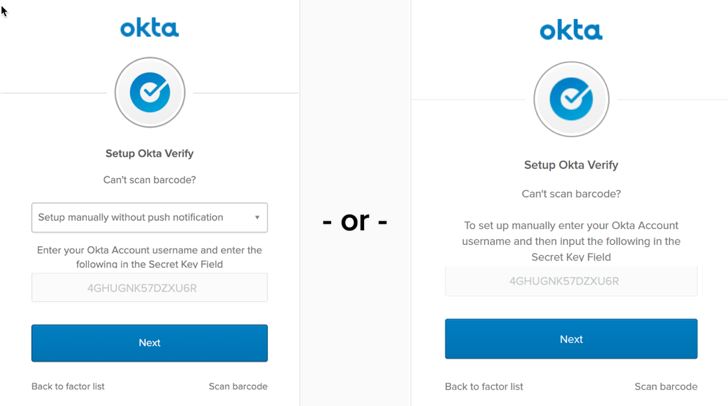
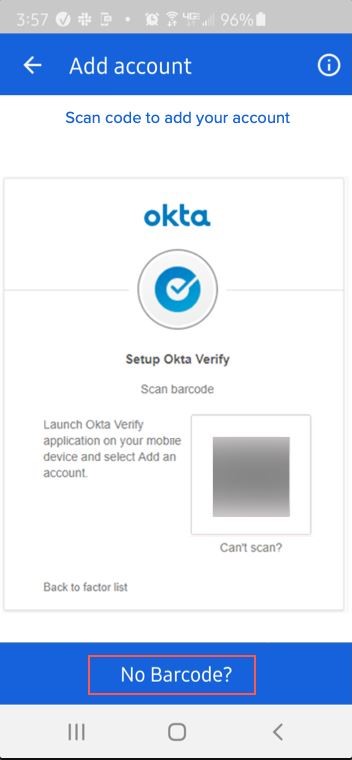
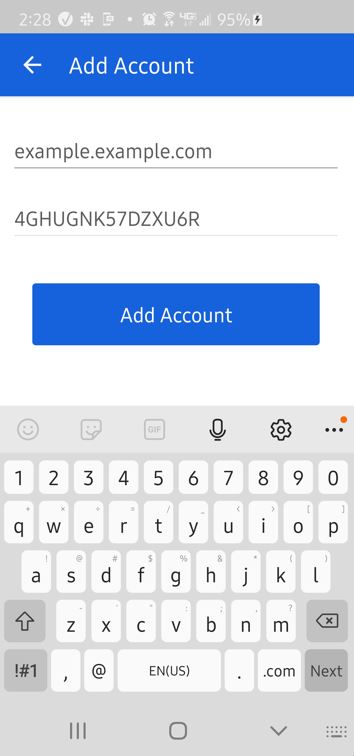
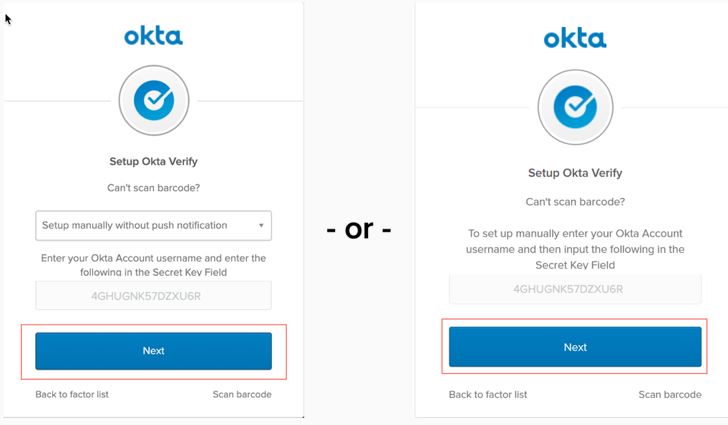
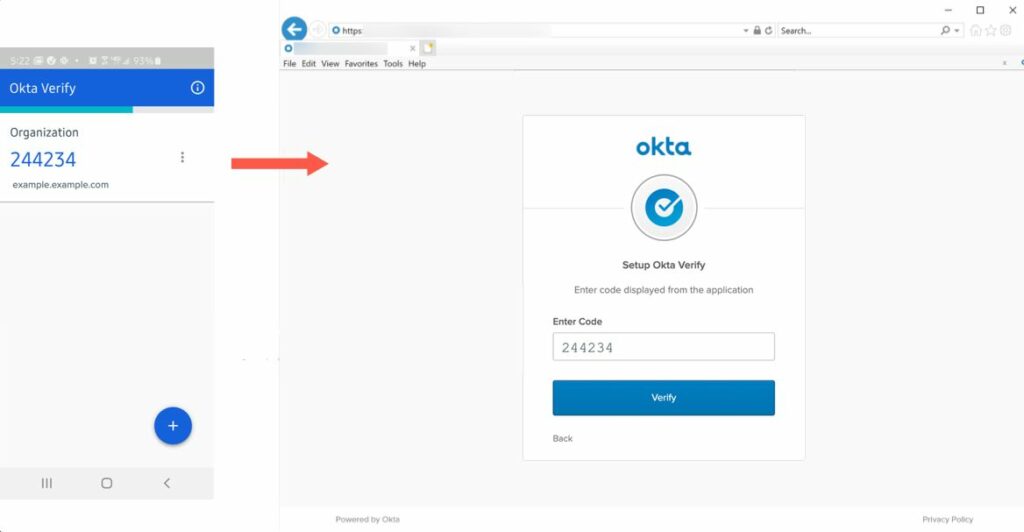
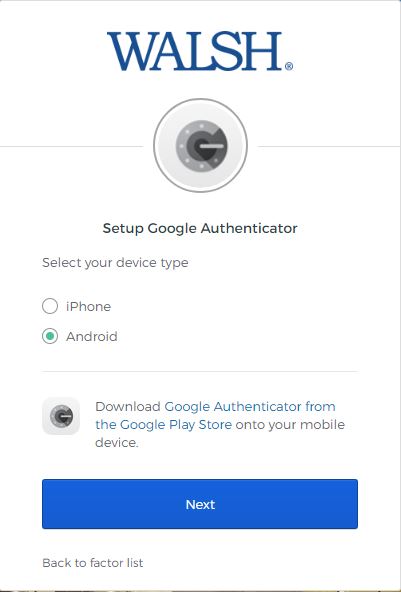
The Google Authenticator app generates a six-digit verification code every 30 seconds. You have 30 seconds to enter the code after it appears. After five unsuccessful attempts, your account is locked and requires an administrator to reset it.
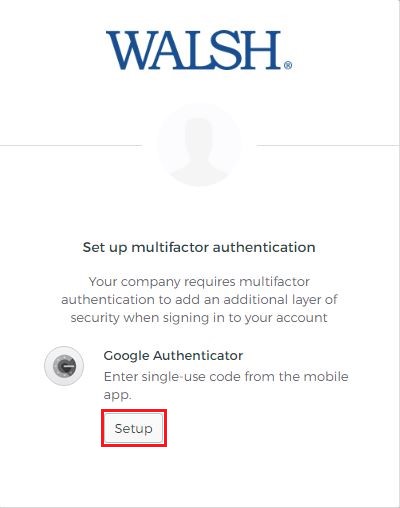
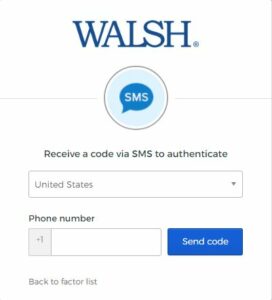
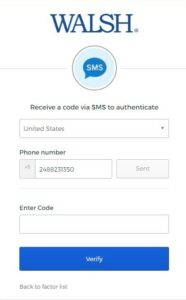
To change your phone number, go to the Account tab on your Okta homepage and click Setup in the Extra Verification section.
If you are having trouble with account activation, MFA setup, or accessing the student portal, contact the Walsh technical support team directly. Response times are typically within one business day.